Data Groups
With few exceptions, data groups must be defined in a device template file (DTF) in order for them to be available for use on a remote device. Which data groups are defined by a device template file depends on protocol, device type, and unique configuration.
CygNet distributes sample device template files for its EIEs, each of which typically serves one or more hardware models along with applicable firmware. Therefore, the data groups described below are only those data groups defined by CygNet in sample device template file(s). Your template(s) might not include some of the data groups described below. Device template files exist to enable users to customize device configurations; however, CygNet is not responsible for changes made by users.
For information about data group definitions and device template files, see Device Template Files.
For more information about data group dependencies, see Data Group Dependencies.
OPC EIE Data Groups
| Data Group Type | Usage Notes |
|---|---|
|
The "Configurable Data Group" data group provides a flexible way to create custom data groups on a per-device basis. See Configurable Data Group. |
|
|
"Single Item" enables you to communicate with a single item. See Single Item Data Group. |
Device-Specific Data Groups
A device-specific data group defined in the device template file (.dtf) includes item IDs, which provide the link between CygNet and the OPC server. These data groups can be read and/or written.
Sample device-specific data group
<deviceDefinition deviceType="MatrikonSim" mfg="CygNet" desc="OPC Matrikon Simulator" category="4098" model="Generic" eieType="OPC" defaultSentinelValue="-9999" defaultUseSentinel="1" cygnetVersion="9.8.1000" customerVersion="">
<!--This template was developed using the Matrikon Simulator OPC server-->
<dataGroups udcCat="UDCALL" canRecv="true" canSend="false" uccRecv="true" uccSend="false" udcDefFac="true" devDG="false" baseOrd="0" maxCnt="1" forceSave="true">
...
<Sample niceName="Sample" defaultSentinelValue="888.888" defaultUseSentinel="1">
<dgElements secLev="4" type="vrnt">
<N001 desc="STW i1" itemId="Saw-toothed Waves.Int1"/>
<N002 desc="STW r8" itemId="Saw-toothed Waves.Real8"/>
<Quality desc="Quality" itemId="Random.Qualities"/>
<test desc="Test" itemId="Bucket Brigade.Int1"/>
</dgElements>
</Sample>
</dataGroups>
...
</deviceDefinition>Data Group Configuration
OPC EIE data groups include properties specific only to the OPC device. The Data Group Properties page includes a section for configuring OPC Groups. For more information, see OPC Group Management.
|
OPC EIE Data Group Properties |
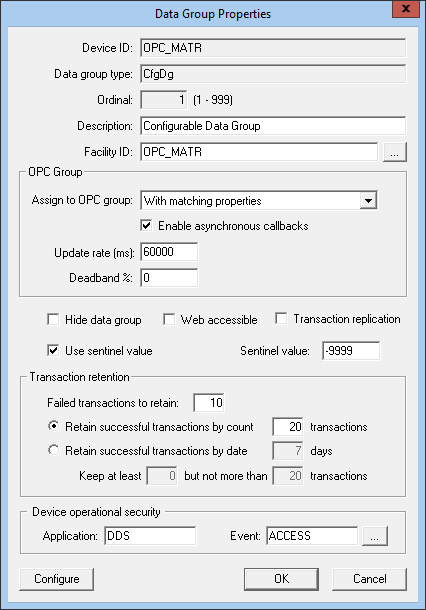
OPC Group
The following table lists and describes properties for the OPC Group section of the Data Group Properties dialog box.
| Property | Description |
|---|---|
|
Assign to OPC group |
This option allows a user to pair a data group with an OPC group definition:
|
|
Enable asynchronous callbacks |
When Enable asynchronous callbacks is selected, the OPC server will perform asynchronous callbacks and push data to the OPC EIE as it retrieves changed values from the remote device. From a system standpoint, this data group no longer needs to have polls scheduled through the MSS. This option is only available with the following selections from Assign to OPC group:
Enable asynchronous callbacks is not available for "Single Item" data groups. |
|
Update rate (ms) |
The value selected for the Update rate (ms) for asynchronous callbacks determines the following behavior:
The default value is 60000 milliseconds. |
|
Deadband % |
The Deadband % is an OPC standard capability that requests that an OPC server only report value changes that exceed a configured percentage. Type a percentage value for the OPC Group Definition. The default value is 0. |
Sentinel Values
The OPC EIEs allow for configurability on point processing to handle unreliable values returned from an OPC server. A user can optionally change the point status bits and retain the point value. See the following topics with more information about configuring point processing for unreliable data:
- Using Sentinel Values to Indicate Unreliable Data — about handling unreliable values returned from an OPC server
- OPC Quality Mapping — about how to optionally choose to change the point status bits and retain the point value.
| Property | Description |
|---|---|
|
Use sentinel value |
To accommodate OPC servers that send sentinel values to indicate data quality, select this check box to use the sentinel value for the data group. |
|
Sentinel value |
Specify the sentinel value to be used or if the "defaultSentinelValue" is specified in the DTF for the data group, that value will be displayed. |
Polling OPC EIE Data Groups
When polling an OPC EIE data group, the Get button gives the user options to get cached values or fresh (device) values from the OPC server. Cached data is always read synchronously, while device data can be read synchronously or asynchronously. An asterisk next to an option indicates the default option when the Get button is selected without specifying a menu option.
The following image shows an example of the Get button menu options for a data group with the OPC group Specific for this data group assigned.
|
Get button menu options |
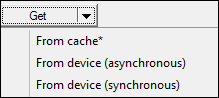
Options in the drop-down menu include (depending on the associated OPC group):
- From cache* — synchronous polling of the cache
- From device (asynchronous) — asynchronous polling of the device (available for all OPC Groups)
- From device (synchronous) — synchronous polling of the device (available for all OPC Groups)
These options can also be controlled with UIS commands using the ReadDevice and SyncIO parameters. For more information, see UIS Command Component Parameters.
Data Group Transaction Quality
A Quality summary field is available to show the quality of the data in the data-group transaction, as well as the first 17 characters of the 64-character 'status_message.' Four possible values can be returned:
- G — All Good
- B — All Bad
- P — Partially Good
- U — Unknown
The Quality summary field is visible only for the CygNet OPC EIEs (the CygNet OPC EIEs (OPC EIE, OPC Comm EIE, OPC Lufkin EIE, and OPC Weatherford EIE). All other EIEs will show Quality as Unknown for data-group transaction.
The Quality field and the transaction XML are shown in the DDS Transaction Viewer.


